Title here
Summary here


When you’re managing your inventory, it’s important to know exactly how each product is measured or sold.
This is where “units of measurement” (UOM) come into play.
Think of UOM as the different ways you can package or measure your products for sale.
For instance, if you’re selling something like “Cool Drinks,” you might offer them in various quantities or packaging options.
You could sell a single bottle, or perhaps a six-pack, or even a case of 24 bottles.
To keep track of these different options, you would create specific UOMs for each one, like “bottle” and “pack.”
Here’s how it works:
By defining these UOMs, you can easily manage your stock levels, track sales, and understand how much of each packaging option is moving.
It also helps when it comes to pricing, as you can set prices for each UOM independently, allowing for flexibility in your sales strategy.
For example, you might offer a discount on the “pack” UOM to encourage larger purchases, or price the “bottle” UOM higher if that’s how collectors or single-serving customers prefer to buy.
In summary, defining UOMs for your inventory items helps you manage and sell your products more effectively, ensuring that you can meet the needs of different types of customers and optimize your stock based on how each item is typically sold.
Goto the UOM page which is under the “Inventory / Stock” menu:
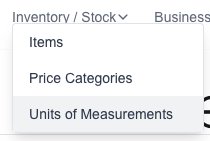
Click on the “New UOM” button:

The new UOM form will appear for you to fill in the desired information:
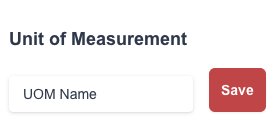
Click on the “Save” button to save the new UOM.
Goto the UOM page which is under the “Inventory / Stock” menu:
You will see a list of all your current created UOM’s.
Simply change the value to your needs and then click on the “Save” button to save them.

If you need to delete a UOM, click on the “delete” (trash Icon) next to the UOM.

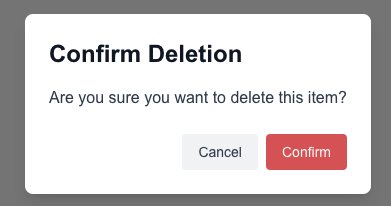
Click on the “Confirm” button to confirm and delete the uom.