Title here
Summary here

Billing terms are a critical aspect of business-to-business transactions and customer relationships. They serve as a formal agreement that outlines the payment expectations and conditions between the provider (company) and its customers. Here’s a more detailed explanation:
Billing Terms Explained:
Payment Obligations: These terms specify exactly what the customer is being billed for, whether it’s goods, services, or both. It includes the total cost of the transaction.
Payment Schedules: This part of the billing terms dictates when and how payments are to be made. It could be a one-time payment upfront, periodic installments (monthly, quarterly), or payment upon delivery. For example, a company might require full payment before shipping goods or services, ensuring that the financial transaction is completed before fulfillment.
Additional Fees: Any additional fees, such as late fees, service charges, or reactivation fees for suspended accounts, are detailed in the billing terms. This ensures that customers are aware of all potential costs associated with their transactions.
For instance, a company might have the following billing terms:
Upfront Payment: For certain high-value goods or services, the company may require a full payment before the order is processed and the goods are shipped. This reduces financial risk and ensures immediate cash flow.
Partial Payment Upfront with the Rest Due Upon Delivery: In other cases, especially for larger projects or ongoing service agreements, the company might accept an initial deposit (e.g., 30% of the total cost) to secure the order, with the remaining balance due once the goods are delivered or the services are rendered.
By clearly defining these billing terms, companies can establish a fair and transparent payment structure that protects their financial interests while providing customers with clear expectations. This helps to maintain good relationships by avoiding misunderstandings about payment obligations and schedules, leading to smoother business operations and more reliable cash flow management.
Goto the “Billing Terms” page which is under the “Company” menu:
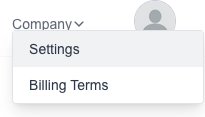
You will be presented with the Billing Terms page.

Click on the “New Term” button:

The New Billing Term form will appear for you to fill in the desired information:
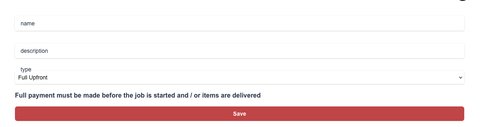
Click on the “Save” button to save your Billing Term
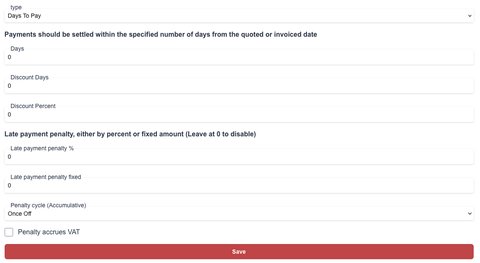
Use this type if you would like the customer to make the payment within x amount of days from when
the quote or invoice was created.
For example, you want a customer to have made the full payment within a week, you will set the “Days” field to 7.
You can offer a customer discount if the payment is made “Early”.
So for example, if the customer makes the full payment within two days, they will receive a “10%” discount.
Set the “Discount Days” field to 2 and the “Discount” field to 10.
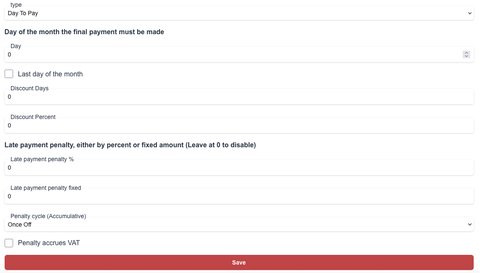
Use this type if you would like the customer to make the payment on a specific day.
For example, you want a customer to have made the full payment on the 1st of the month, you will set the “Day” field to 1.
If you need the payment to be done on the last day of each month, select the “Last day of the month” checkbox.
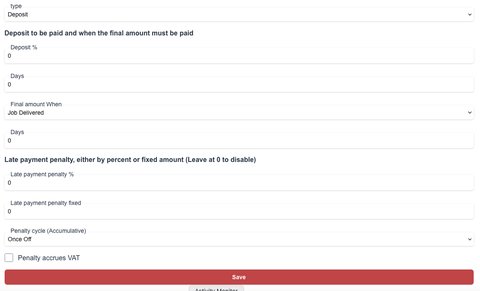
Use this type if you would like the customer to pay an upfront deposit and then the rest at the end of a job or within x amount of days.
For example, you want a customer to deposit “30%” before you start your installation job, then once you have completed the installation, the customer
will need to make the final payment.
Or you want a customer to deposit “50%” upfront and then have “60” days from the date quoted / invoiced.
You are unable to edit a term, instead create a new term and delete the old term if needed.
