Title here
Summary here


The Chart of Accounts (COA) is a structured list of all the accounts used by a business to record its financial transactions.
These accounts are grouped into categories such as assets, liabilities, income, expenses, and equity.
Each account in the COA represents a specific type of transaction, like sales revenue, office supplies,
or bank balances, and is usually assigned a unique code or number for easy identification.
Foundation of Your Financial System
The COA forms the backbone of your entire accounting setup. Every transaction, whether it’s a sale, an expense, or an asset purchase, must be recorded in the correct account to ensure accurate reporting.
Organized Record Keeping
It provides a clear and consistent structure for organizing financial data, making it easier to track where money is coming from, and where it’s going.
Accurate Financial Reporting
A well-structured COA ensures that reports like income statements, balance sheets, and cash flow statements are accurate and meaningful.
Customizable to Your Business
The COA can be tailored to match your industry or business type, allowing you to track performance in the way that makes the most sense for you.
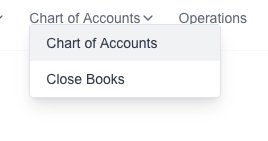
Goto the COA page which is under the “COA” menu:
Click on the “New COA” button:

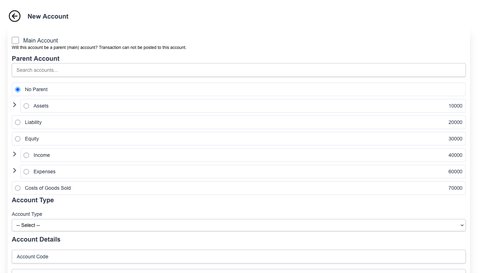
The new COA form will appear for you to fill in the desired information:
Click on the “Save” button to save the new COA.
Goto the COA page which is under the “COA” menu:
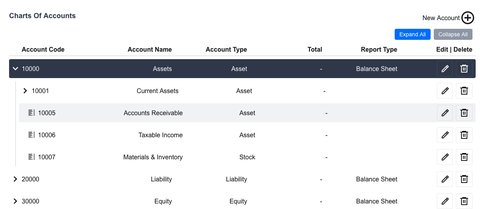
You will see a list of all your current COA.

Click on the “Save” button to save the COA.
If you need to delete a COA, click on the “delete” (trash Icon) next to the COA.

Click on the “Confirm” button to confirm and delete the COA.