Title here
Summary here


A credit note is a commercial document that a business issues to a customer to reduce or eliminate an outstanding debt or provide a refund.
It essentially serves as negative invoice, crediting the customer’s account rather than debiting it.
Credit notes are commonly issued when a customer returns goods, when there’s been an overcharge or billing error,
when products are damaged or defective, or when a business wants to offer a goodwill gesture or discount after the original invoice was created.
The document typically includes a unique credit note number, reference to the original invoice, the reason for the credit, an itemized list of the goods or services being credited,
and the total amount being credited back to the customer.
This amount can either be refunded to the customer, applied against future purchases, or used to offset other outstanding invoices.
Credit notes are essential for maintaining accurate financial records and ensuring proper accounting of adjustments to revenue and accounts receivable.
There are three methods you can use to create a Credit Note:
When making a receipt or recording a payment, any overpayment will show the “Change” options.
Select the “Credit” option in the drop down. This will create a credit note for the customer.
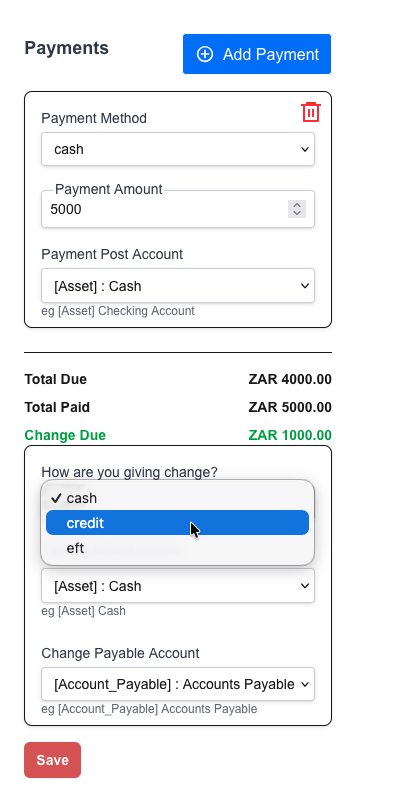
Click on the “Save” button, the credit note will be created in the background and will be found under the “Credit Note” section for the customer.
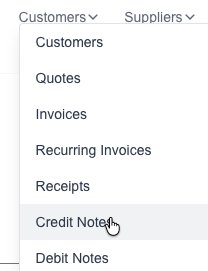
Goto the Credit Note page which is under the “Customers” menu:
Click on the “New Credit Note” button:

When you are importing transactions, click on the “allocation” button to open the allocation screen for that transaction:

At the bottom, you will see there is an option to select “credit”, select the customer and then set the value.
This will create a Credit Note when you complete the transactions import process.

Goto the Credit Note page which is under the “Customers” menu:
You will see a list of all your created Credit Note:
Click on the view button: