Title here
Summary here


If your company charges tax, this is where you can setup the tax systems you use. You can also set up all the tax percentages “Tax Types” here.
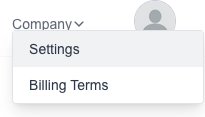
Goto the Settings page which is under the “Company” menu:
Click on the “Tax Types” menu on the left.
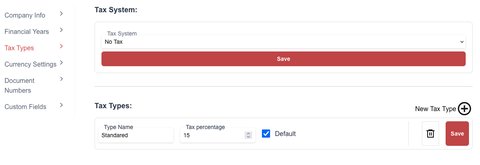
You will be presented with the “Tax Types” page.
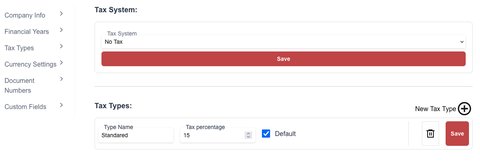
Use the “Drop Down” input to select a the tax system.
If you do not charge TAX / VAT, you will use the “No Tax” option.
If you do charge TAX / VAT, you will use the “Invoice Based” option.
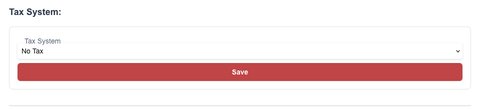
Click on the “Save” button to save your selection
Goto the Settings page which is under the “Company” menu:
Click on the “Tax Types” menu on the left.
You will be presented with the “Tax Types” page.
Click on the “New Type” button:

The new tax type form will appear for you to fill in the desired information:

Click on the “Save” button
Goto the Settings page which is under the “Company” menu:
Click on the “Tax Types” menu on the left.
You will see a list of all your “Tax Types”.
Simply change the value to your needs and then click on the “Save” button to save them.

If you need to delete a type, click on the “delete” (trash Icon) next to the type.
